
Settings
Choose appearance, rates and monitoring preferences, then save them as one change.
Open, edit and save
Select the gear at the top right. The dialog has General, Monitoring & alerts and Data & Info tabs. Scroll inside a tab to reach the remaining fields.
OK validates and commits the draft; Cancel, the close button or Esc discards it. Appearance changes may preview while the dialog is open and revert on Cancel. Correct any inline validation message before saving.
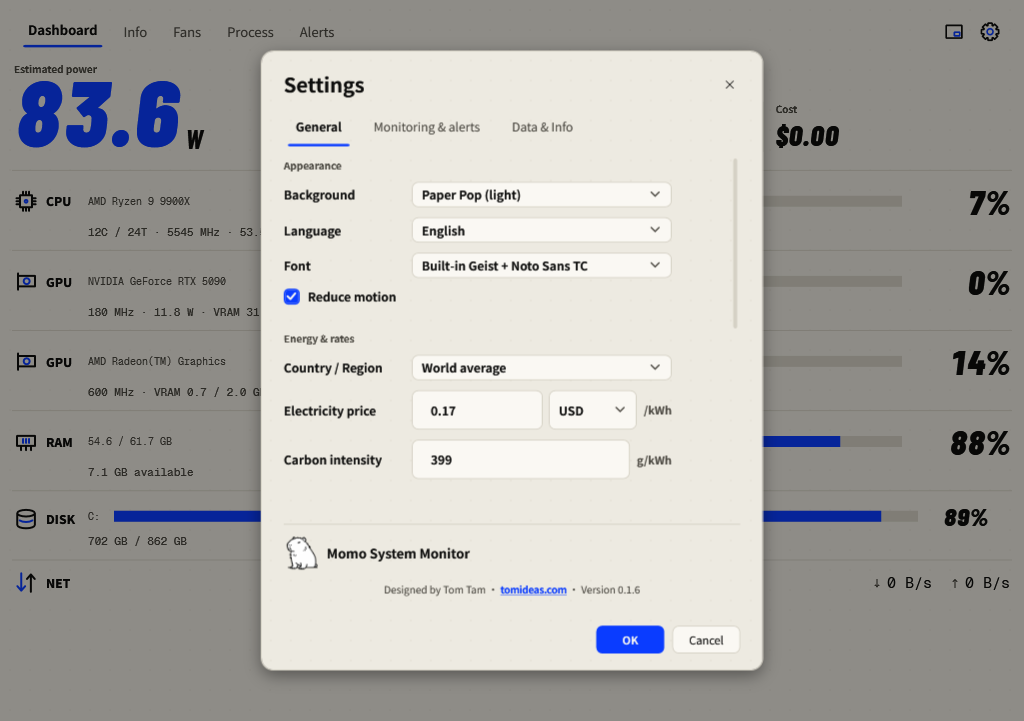
General
| Option | What it changes |
|---|---|
| Background | Paper Pop (light) or Volt (dark). |
| Language / Font | English or Chinese and the supported font choices. |
| Reduce motion | Keeps the startup and Mini mascot static and reduces UI motion. |
| Country / Region | Electricity price, currency and carbon intensity together. |
| Electricity price / Carbon intensity | Your assumptions per kWh; rate setup. |
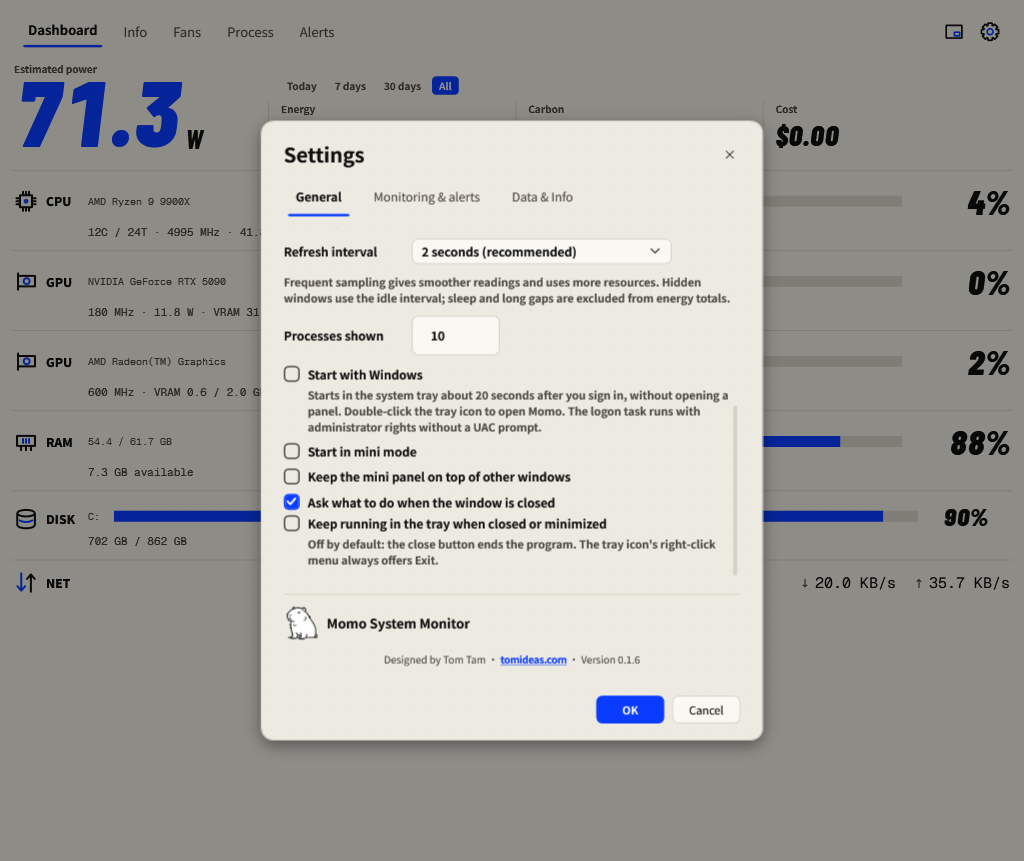
| Processes shown | The process list length. |
| Refresh interval | Visible sensor sampling rate. |
| Run in the system tray | Keeps sampling and alerts active while hidden. |
| Start with Windows | Registers the administrator logon task. |
| Mini preferences | Always-on-top behavior and manual-launch Mini mode. |
Refresh interval
The visible interval defaults to 2 seconds (recommended); options include 1, 2 and 5 seconds. Faster sampling reacts sooner but performs more sensor queries. When all windows are hidden or minimized, Momo uses the slower idle interval (5 seconds by default).
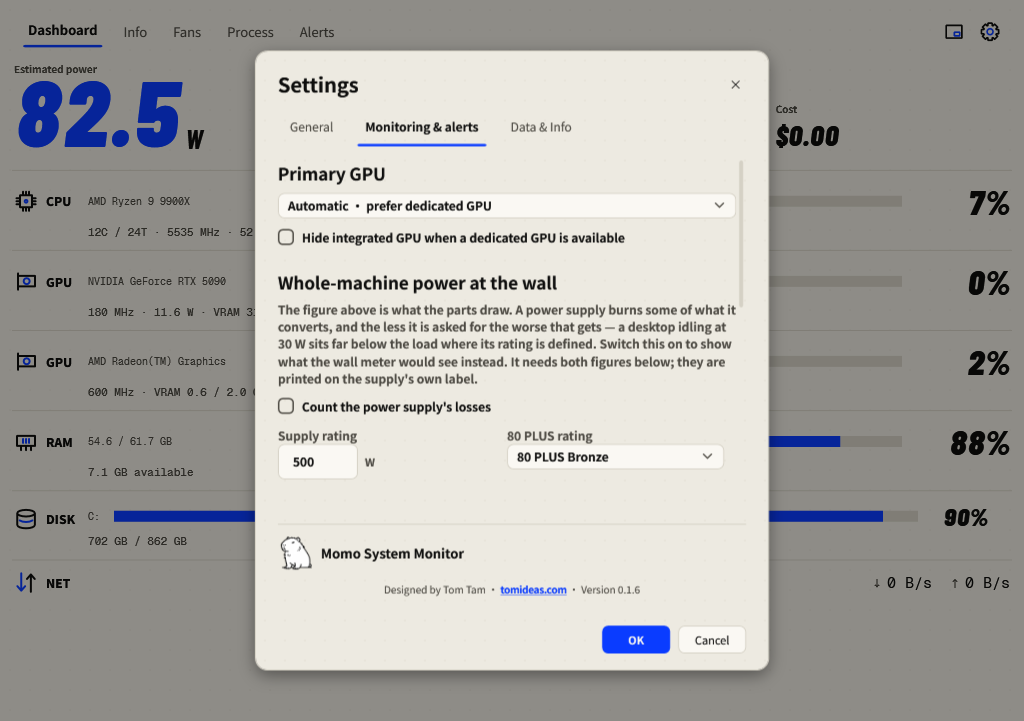
Monitoring & alerts
Choose your primary GPU, optionally hide the integrated GPU when a dedicated GPU exists, configure PSU-loss estimates and alert limits, and enable missing-driver installation when offered. Automatic GPU selection prefers a dedicated card. A missing saved GPU falls back to automatic.
Data & Info
Read the local-data guidance and any storage warnings before making a backup. Settings and histories are local. Find momo-data beside the executable, or the compatibility AppData folder described in Portable data & backups.
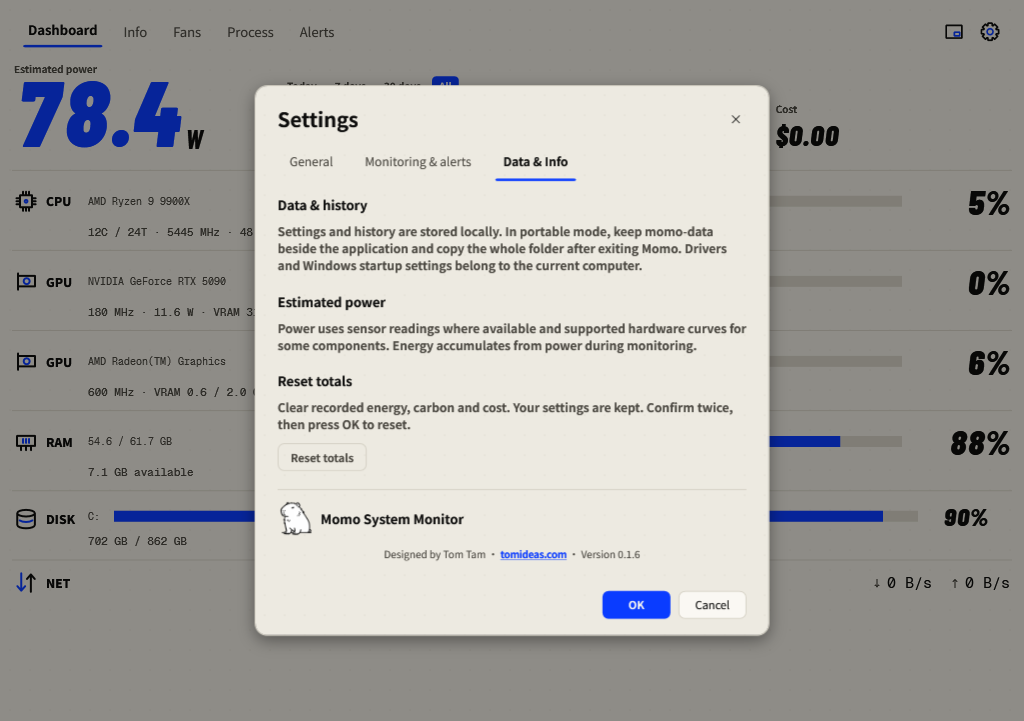
Reset cumulative totals
Reset totals clears recorded energy, carbon and cost while keeping preferences. Back up your data first if you want to retain the records. Confirm the action twice inside the dialog, then press OK to execute the pending reset. Cancel keeps the totals.