Quick Start
After installation, follow these steps to start using Momo AI in minutes.
Step 1: Open the Sidebar
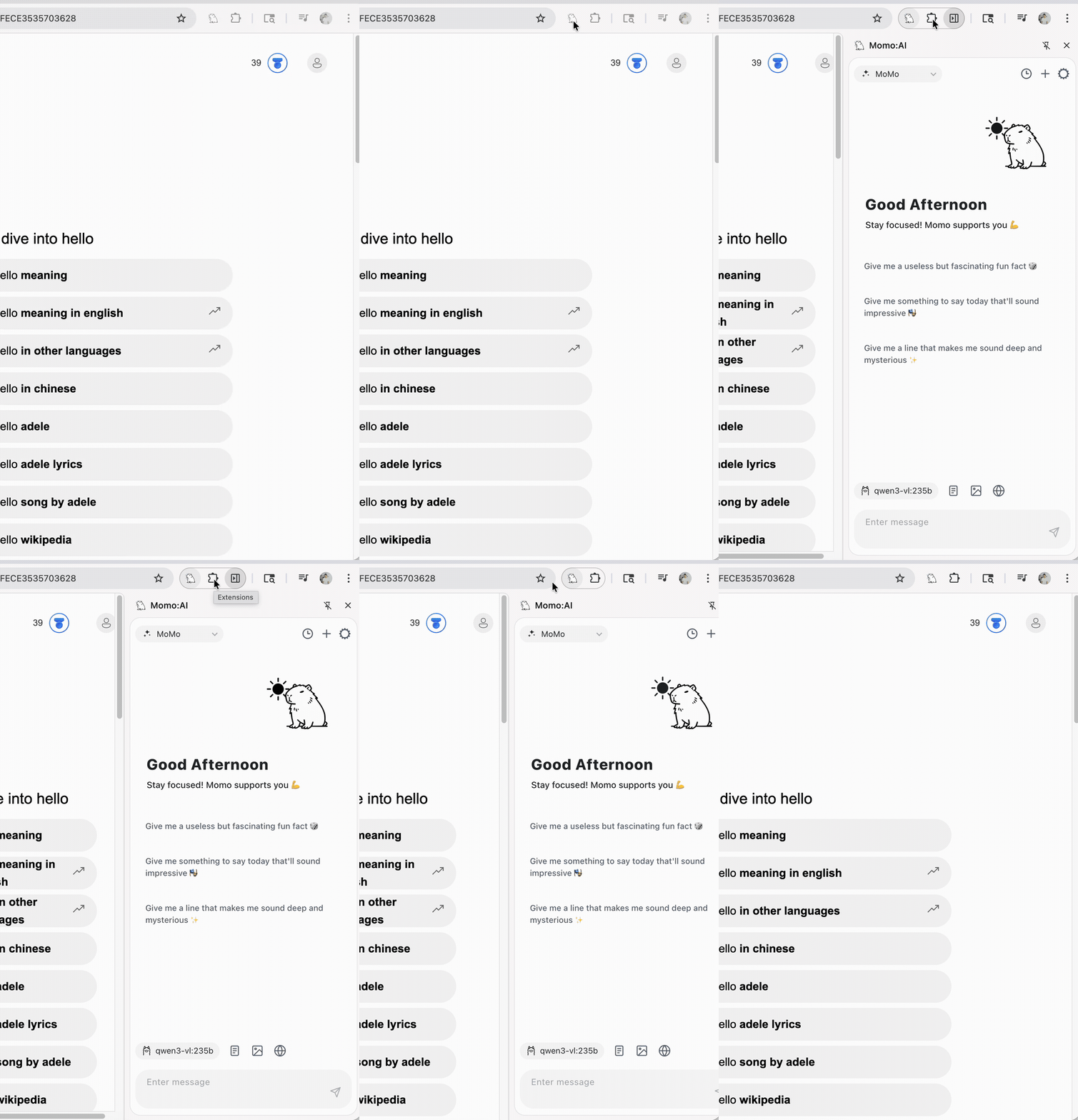
There are three ways to open the Momo AI sidebar:
- Click the toolbar icon — Click the Momo AI icon in the Chrome toolbar
- Keyboard shortcut — You need to set this up first at
chrome://extensions/shortcuts, see the Shortcuts page for details - Float ball — If the float ball feature is enabled, simply click the floating button on the page
Step 2: Set Up AI Provider
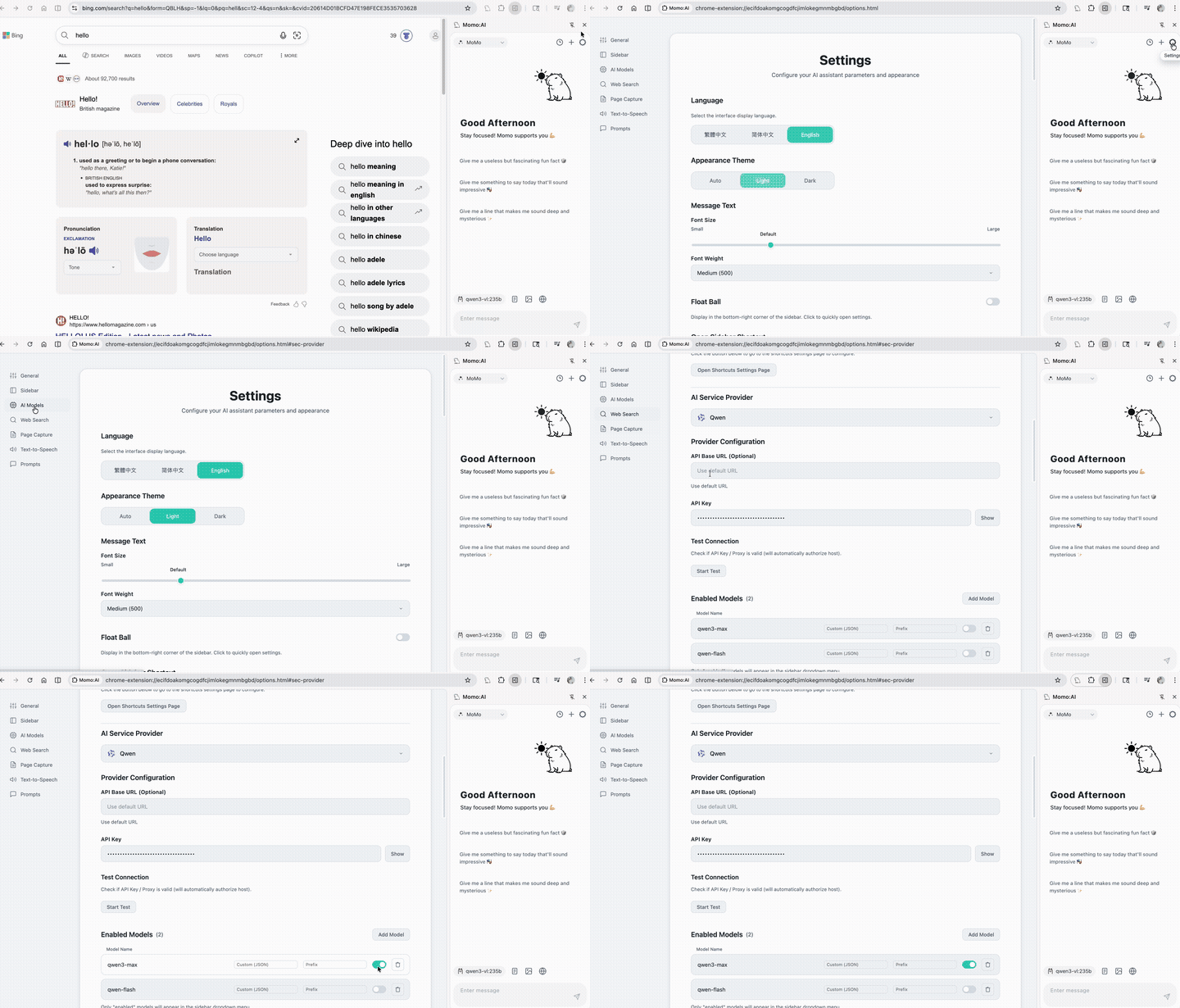
- Click the ⚙️ Settings button in the top-right corner of the sidebar
- Select AI Models from the left navigation
- Choose the provider you want to use from the list (e.g. OpenAI, Google AI, DeepSeek)
- Enter the corresponding API key (some local providers like Ollama don't require a key)
- Click Test Connection to verify the configuration
💡 No API Key Needed?
If you're using Ollama or LM Studio, just make sure the local service is running — no API key is required.
Step 3: Start Chatting
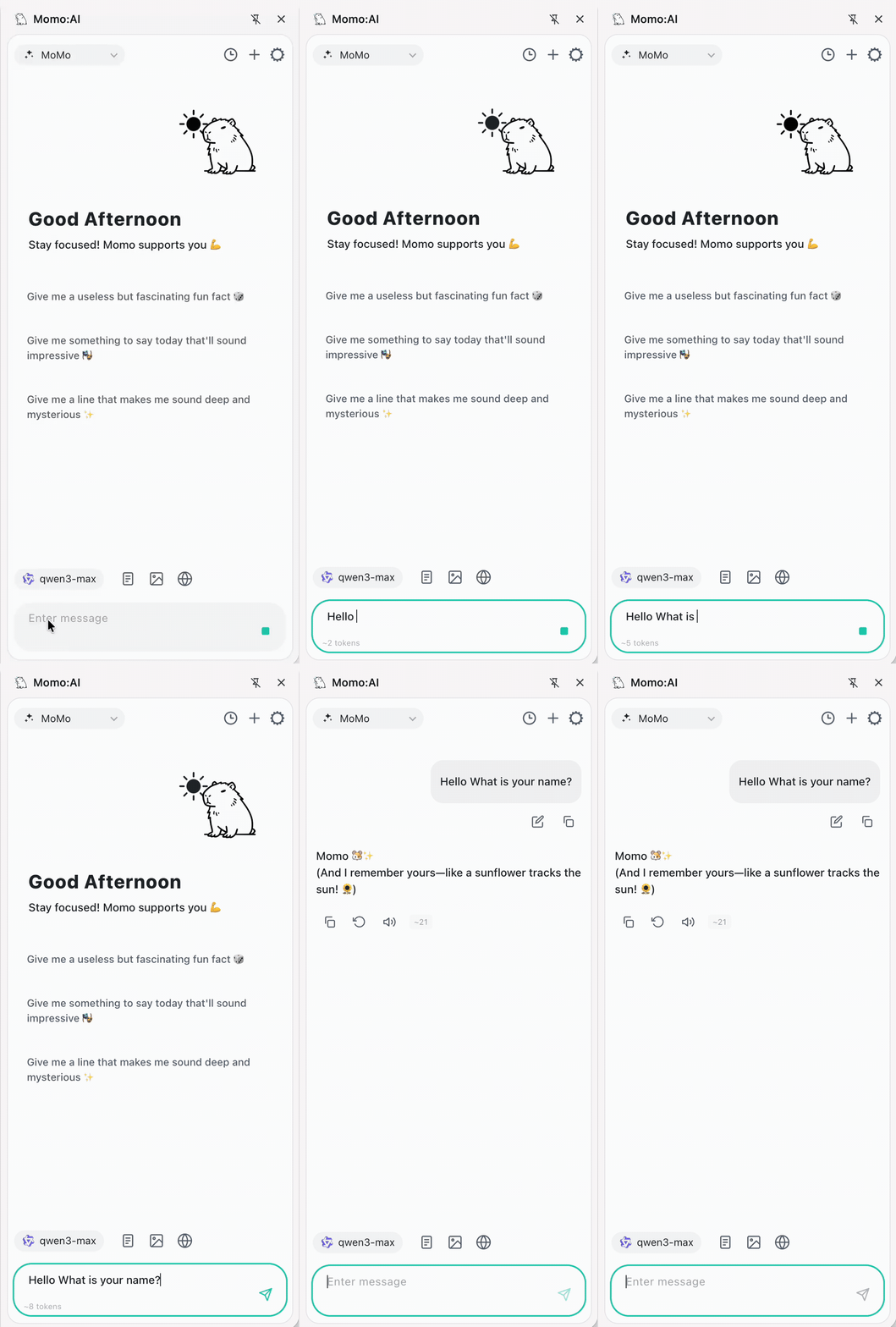
Go back to the sidebar, type your question in the input box at the bottom, then press Enter or click the send button.
You can also click Prompt Suggestions on the welcome screen (e.g. Translate, Summarize) to start quickly. If the input box already has text, clicking sends the suggestion together with your content.
Advanced Features Overview
The toolbar at the bottom of the sidebar provides several useful features:
| Button | Feature | Description |
|---|---|---|
| 📄 | Page Capture | Smart Capture extracts the current page; page content is sent only with that turn, not on every follow-up |
| 🖼️ | Image Upload | Attach images for AI analysis |
| 🔍 | Web Search | Let AI search the web for real-time information |
| 💡 | Thinking Mode | Enable deep reasoning, showing the thinking process |